
AI Background Remover
Remove distracting image backgrounds, isolate the subject, and create transparent PNG, white-background, or custom-background assets for products, portraits, and design work.
New here? Sign up and get free credits to try it.
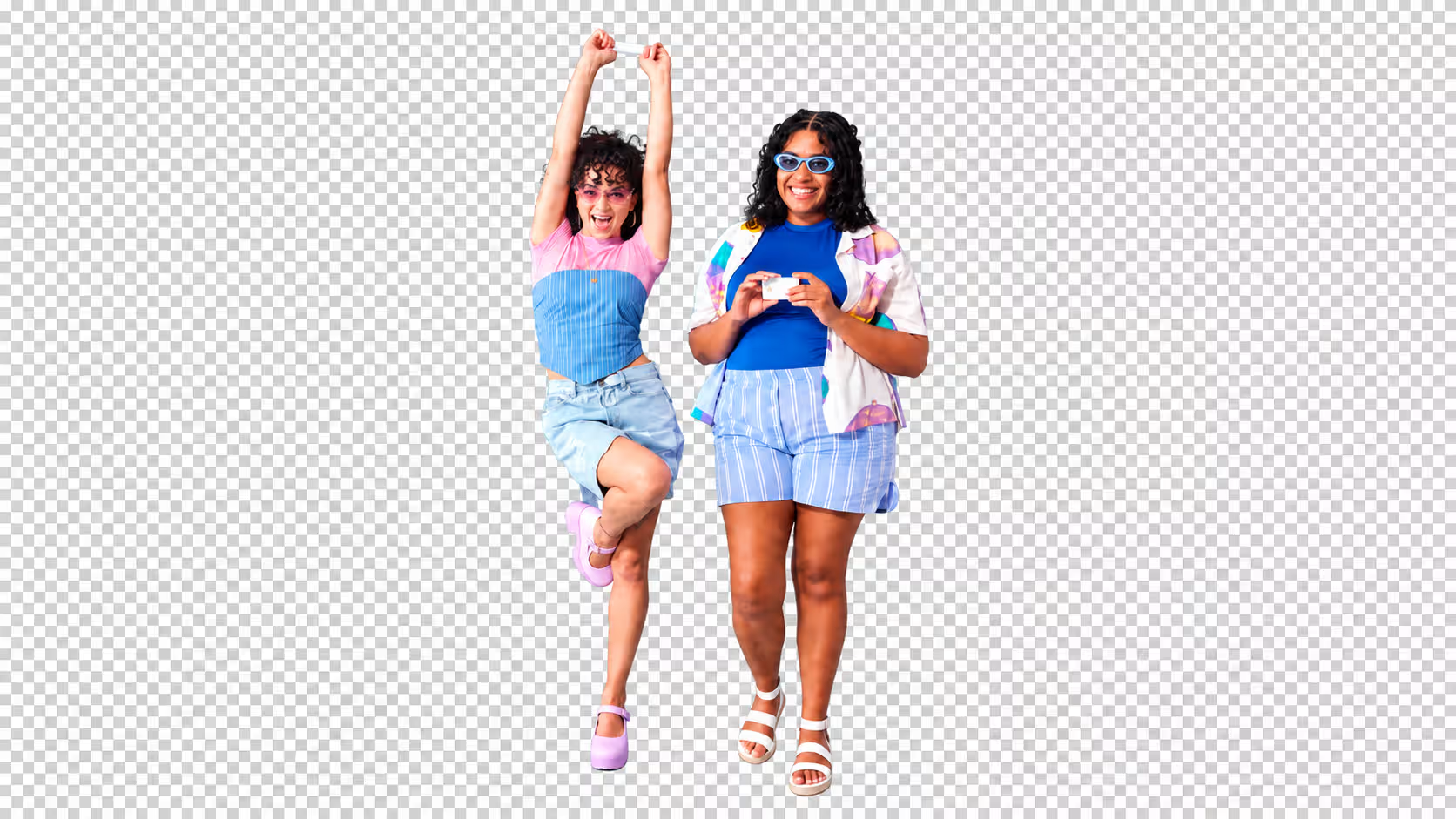
 BeforeAfter
Cutouts made with EzPicture
Products and portraits are the two cutouts people make most. Here is what a clean result keeps in each case.
Product Cutouts for Marketplace Listings
Products shot on colored paper, tabletops or busy store shelves are lifted off the backdrop together with any stray cast shadow, so the item is ready for a white listing image, a transparent PNG, or a branded banner.
- Straight package edges and rounded caps keep their exact silhouette
- No color spill from the old backdrop left on light-colored surfaces
- Fine print on labels and packaging stays readable after the cutout
Portrait Cutouts with Long Hair
Head-and-shoulders photos taken against a wall, a solid backdrop or an outdoor scene are separated strand by strand, so the portrait can go on white, blue, red, or any background a resume or profile requires.
- Loose strands along the shoulders are kept instead of clipped
- No colored fringe left around the hairline or the ears
- Collars, ties and knitwear edges stay sharp and complete
What the AI Background Remover Can Do
Create reusable cutouts for common workflows, then inspect fine edges, transparent materials, and shadows before export.
One-Click Smart Background Removal Online
Upload an image and AI segmentation separates the subject from the background automatically — no outlining, no desktop software. Clean cutouts of people, products and objects in seconds, even for first-time users.
Accurate Background Removal for E-commerce
Lift products out of cluttered shooting setups while keeping their full outline and surface detail, then place them on white, transparent or a solid brand color that fits marketplace listing standards.
ID Photo Background Replacement
Separate a portrait from a busy background with clean hair, shoulder and collar edges, then swap in a white, blue or red backdrop for resumes and profile photos. Official IDs still follow the issuer's rules.
Hair-Level High-Precision Complex Cutout
Pixel-level segmentation handles the edges that break ordinary tools — loose hair, fur, sheer fabric, glass and hollow ornaments — without broken strands, leftover background or white fringes.
Bulk Background Removal in One Click
Process a whole set of product or campaign images in one pass and export them with the same transparent or solid background, so every image in the series stays consistent.
Pick the Background Your Project Needs
Removing the background is only half the job. Decide where the image will be used, then ask for the output that fits that destination.
Transparent PNG
Keeps an alpha channel so the subject can be layered into posters, slides, product pages, or video thumbnails. Best when you will finish the composition in another design tool.
Pure White Background
A clean #FFFFFF backdrop for marketplace main images and catalogs. Many platforms require white main images, so check the current rules of the store you list on.
Solid or Brand Color
Place the subject on blue, red, light gray, or your brand color for profile photos, resume headshots, and a consistent product series.
New Scene Background
Describe a setting such as a marble countertop, a studio gradient, or an outdoor street, and the subject is placed into it with matching light and a natural contact shadow.
Remove Background in Three Steps
Upload an image, describe the background you want removed or replaced, and review the cutout before export.
Upload an Image
Upload a portrait, product or scenery image that needs background removal. JPG, PNG and WEBP are all supported.
Describe Your Needs
Type one sentence, or simply pick a direction such as background removal, white background or transparent background.
Get Clean Results
Review the subject outline on both light and dark backgrounds, then export a transparent PNG or the background treatment your project needs.
Example Prompts for Background Removal
After uploading an image, type a short instruction in the input box. Clear instructions about what to keep and what to output give more predictable results.
Remove the background completely and keep only the bottle. Output a transparent PNG with clean edges.
Replace the background with pure white and keep a soft contact shadow under the product.
Change the background to a plain light blue. Keep every hair strand and the shirt collar unchanged.
Cut out the dog from the grass, preserve the fur along its outline, and leave no green fringe.
Remove the background behind the wine glass and keep the glass semi-transparent instead of filling it with white.
Place the handbag on a beige studio backdrop with soft daylight from the left.
Frequently Asked Questions
Real questions people ask about AI background removal, transparent PNG files, difficult edges, shadows, and export quality.
Use a sharp, high-resolution image with one clear subject and visible contrast between the subject and background. Heavy compression, motion blur, cropped limbs, overlapping objects, or similar foreground and background colors make image background removal less reliable.
AI background removal can preserve many fine edges, but hair, fur, glass, lace, smoke, reflections, and motion blur remain difficult cases. Start with a clear source image and inspect semi-transparent areas at full size. Important commercial cutouts may still need edge refinement.
A halo usually comes from semi-transparent edge pixels carrying color from the old background. Preview the cutout over both light and dark colors, request cleaner edge decontamination, and avoid judging the result only on a checkerboard or white canvas.
PNG supports an alpha channel, so removed areas can stay transparent. JPG does not preserve transparency and replaces it with a solid background. The checkerboard shown in many editors is only a transparency preview; it should not appear in the downloaded transparent PNG.
Crop closer to the subject, use an image with clearer separation, and describe exactly what must remain. Photos with several equally prominent people or objects can confuse an automatic background remover, so process a tighter crop when possible and check holes, corners, and thin structures.
It depends on the destination. A natural contact shadow can help a product look grounded on a new background, while a cast shadow from the old scene may look incorrect. State whether the useful product shadow should remain, then inspect its edge and direction after background removal.
Background removal changes the transparency mask, but visible edge quality still depends on the source image and export settings. Start with the highest-resolution original available and inspect the downloaded result at its intended display size, especially around hair, product corners, and small text.
No. A background remover isolates the foreground subject and clears the area around it. Object removal erases something inside the scene and must generate pixels to rebuild what was behind that object. These are different editing tasks.
Removing an image background does not grant new rights to the source. Commercial use depends on the original license, recognizable people, trademarks, and the terms for your account and selected model. Confirm those rights before using the cutout in products, ads, or client work.
Remove your image background now
Remove distracting image backgrounds, isolate the subject, and create transparent PNG, white-background, or custom-background assets for products, portraits, and design work.